ImageTo100.com
Image tools on ImageTo100.com
This page is the catalog, not a second workbench. ImageTo100.com ships one live tool today: compress an image or photo to a kilobyte cap in this browser. The homepage is where you drop the file. This list tells you what is actually here, which size to type, and what we will not fake with an empty card.
Compress to 100KB
Homepage compressor. Default 100KB, or type 5KB–10MB. Batch of 20, JPG download, no upload.
Open tool →Which tool should I open?
If a form printed a maximum file size, open the homepage compressor. Leave 100KB if that is the number, or type the cap you were given. You do not need a different site for “compress photo” versus “compress image.” Both use the same encoder. You also do not need a second card for JPG — the download is always JPG so job, visa, and exam portals still accept the file.
Open this Tools page when you want the short index: what is live, what sizes the one tool covers, and what ImageTo100.com refuses to list. The work still happens at the top of the homepage tool.
Size targets the live compressor covers
There is no /20kb or /50kb microsite. Those numbers are presets and a type-in box on one page. That keeps the site from turning into a spray of thin URLs that all say the same thing.
| Target | When to use it |
|---|---|
| 10KB / 20KB / 50KB | Exam signatures, tight ID boxes, and portals that print a small cap. |
| 100KB (default) | The homepage start. Job, visa, and many profile-photo forms still say 100KB. |
| 200KB / 300KB | Forms that say 100KB to 200KB, or a slightly looser email attachment. |
| 500KB / 1MB | Chat, mail, and listings that allow a larger still image. |
| 2MB–10MB | Type 2048, 3072, 5120, or up to 10240. This is not a 100MB bulk archive tool. |
What you can drop into the live tool
JPG, PNG, WebP, GIF, BMP, and AVIF work in a modern browser. iPhone HEIC/HEIF is decoded in Safari and converted in other browsers when the on-page converter can read it. Photos picked from iCloud or Google Photos are fine if they are still image files — empty mime types and .jfif names are accepted. PDF, RAW camera files, and video are rejected.
A phone can send files up to about 50MB; a computer can send 100MB. One batch is 20 files, then Download all. Encoding uses MozJPEG in a local Worker. If WASM cannot start, the page falls back to the browser JPEG encoder. After the page has loaded, the compressor does not need a second upload pipe.
What is not on this list
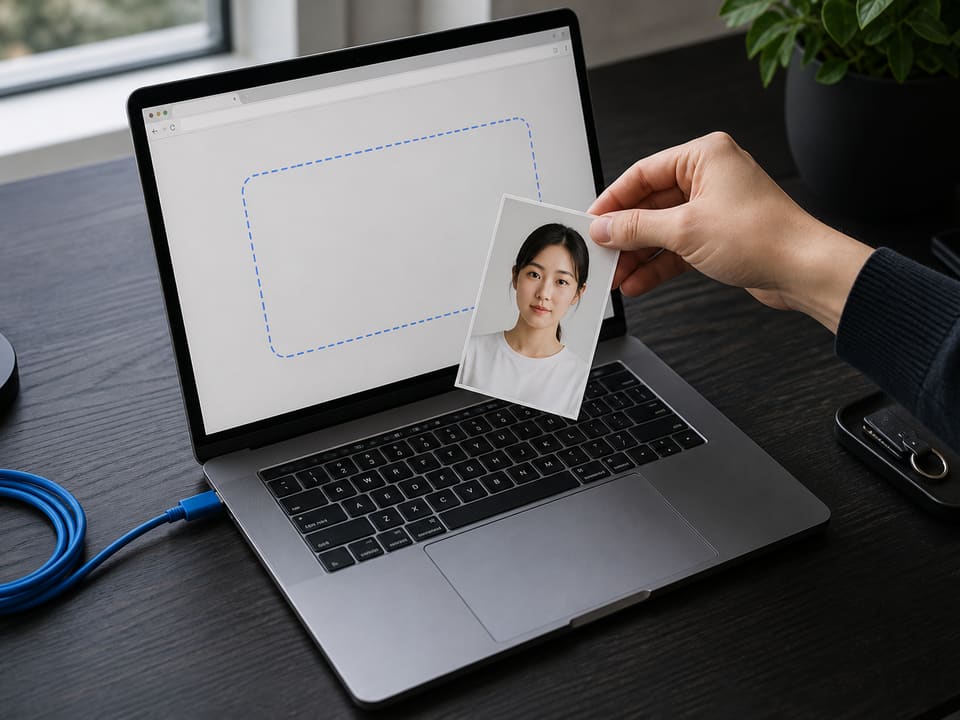
Search results for “image tools” are full of directories that promise convert, crop, PDF, watermark, and background removal on the same domain. Most of those tiles are thin or send you somewhere else. ImageTo100.com does the opposite: one working compressor, stated limits, no decoy cards.
No image-to-PDF converter
People who search “compress image to 100kb pdf” usually need a small JPG to drop into a PDF form. This list does not ship iLovePDF or an image-to-PDF route. Compress on the homepage, then attach that JPG to the form or PDF tool you already use.
No TinyPNG clone or mystery slider
ImageTo100.com is not TinyPNG, TinyJPG, or a generic “compress for the web” slider. You name the kilobytes. The page searches for the sharpest JPG that still fits.
No empty second-tool cards
A tools directory with greyed-out “coming soon” tiles is how a template looks unfinished. If a second tool ships, it gets a working URL and a card here the same day. Until then the list stays honest: one live tool.
No crop, background, or face-size studio
Portals also reject photos for width, height, white background, or face ratio. Those are different jobs. This site hits the byte cap. Read the form for the rest.
How this page differs from the homepage and About
The homepage is the workbench: drop files, set the KB cap, compress, download. It owns the search job “compress image to 100KB.” About explains who runs the site, the product choices, and what ImageTo100.com is not. This Tools URL exists so a crawler or a person who clicked “all tools” does not land on an empty template. It is an index with real answers, not a doorway stuffed with the same homepage paragraphs.
If you already know the cap, skip the prose. Open the card above. If you landed here looking for PDF, TinyPNG, or a crop studio, the honest answer is those products are not on ImageTo100.com — use the right tool instead of a fake tile.
How to use this list
Read the form, then pick the cap
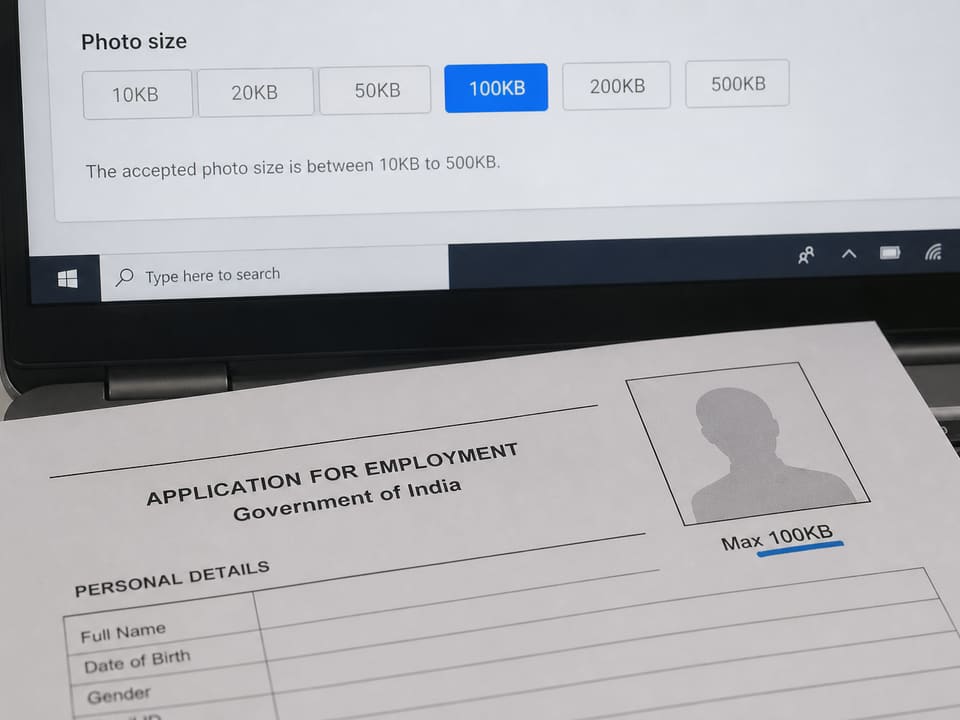
If the portal says maximum 100KB, leave the default. If it says 20KB or 200KB, type that number on the homepage. Do not hunt for a second tool named after the size.

Compress on the homepage, then check the size
Click Compress now. Confirm the result is at or under the target on your device before you open the application site. ImageTo100.com cannot promise a portal will accept a photo if width, background, or face-size rules are also wrong.
Tools FAQ
These questions are about the catalog. How-to steps for hitting 100KB live on thehomepage FAQ.
How many tools are on ImageTo100.com right now?
One live tool. The homepage compressor hits a KB cap — default 100KB, or any custom size from 5KB to 10MB. This /tools page is the catalog, not a second compressor with different rules.
Where do I open the compress-to-100KB tool?
Open the homepage and use the drop zone at the top, or follow the Compress to 100KB card on this page. Both go to the same encoder. There is no separate 100KB app behind another login.
Is there a separate tool for 20KB or 50KB photos?
No. 10KB, 20KB, 50KB, 200KB, and 1MB are presets on the same homepage tool. We do not create a thin URL for every size. Type the number your form printed, then compress.
Why is this not a big image-tools directory?
A one-job site that pretends to offer forty half-built utilities looks like junk to people and to search. ImageTo100.com is size-first compression. Empty cards stay off this list on purpose.
Is there an image-to-PDF or iLovePDF tool here?
No. ImageTo100.com does not convert an image to PDF and is not iLovePDF. If you need a 100KB file inside a PDF form, download the JPG here, then add it to the form or PDF tool you already use.
Is TinyPNG, a WebP converter, or a resize studio on this list?
No. PNG or WebP can go into the compressor; the download is still JPG so job and visa sites accept it. There is no TinyPNG brand page, no WebP export picker, and no dedicated resize tool.
Do I need an account to use tools on this site?
No. There is no signup, no daily cap on the homepage tool, and no watermark. Compression stays in this browser after the page has loaded.
Will more tools be added to this page?
Only if they are a real, working product — not a second copy of the same compressor. Ideas that turn ImageTo100.com into a generic “all image tools” site wait. When a second tool ships, it appears here with a live URL.
Can I use the tools on a phone?
Yes. Safari and Chrome on iOS and Android can pick from the camera roll or a cloud album. HEIC from iPhone is decoded when the browser or the on-page converter can read it. File limits are about 50MB on a phone and 100MB on a computer, up to 20 files in one batch.
How is this Tools page different from About?
About explains who runs the site and what the product will not pretend to be. This page is the index: which tool is live, which size to type, and what will never get a fake card. The work itself still happens on the homepage.
Open the live compressor
One tool. Default 100KB. Type any other cap. Files stay in this browser.
Go to the homepage tool